


Adding a stay and joining one
You add a stay in two steps and see who is already there at that time.
1. Choose dates
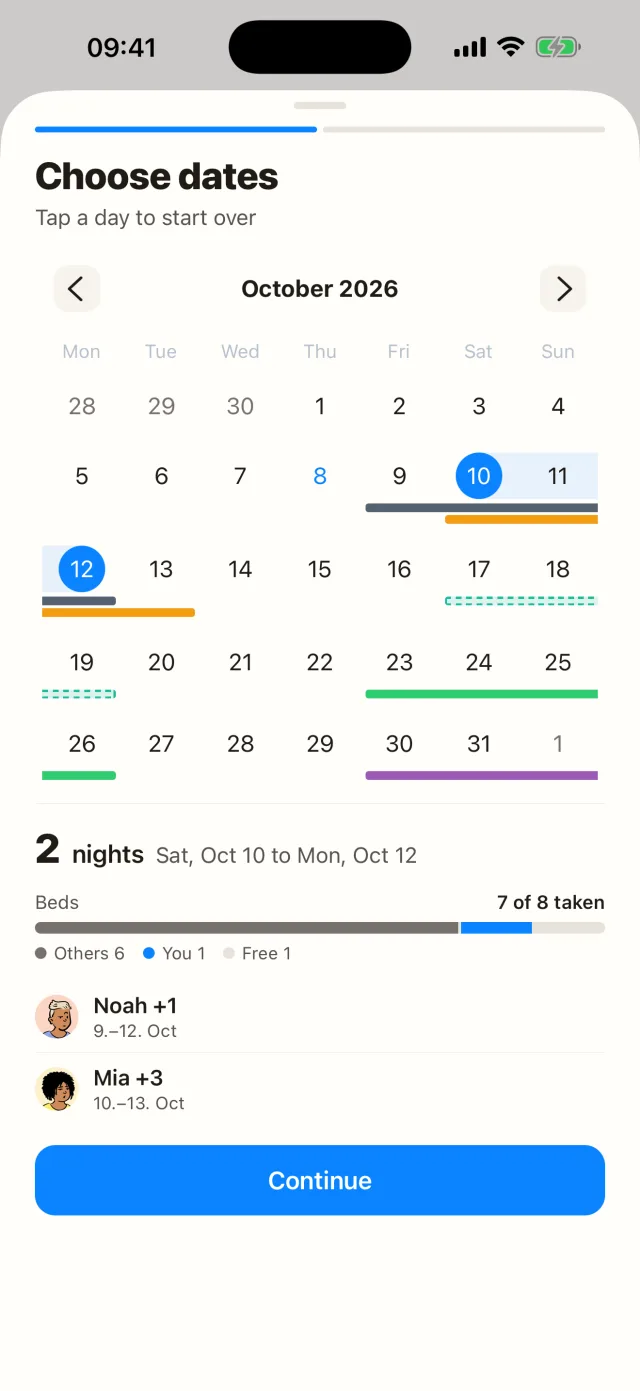
Open the place and tap Plan a stay. Choose dates opens with the place calendar, showing everyone else’s stays.
Choose your arrival day, then your departure day. Below you see the number of nights and every stay that overlaps your dates. If a stay allows joining, Join shows up next to it. Tap Continue. Tapping another day starts over.
If the place has a bed count, a bar shows the beds in the busiest night: grey for others, blue for you, empty for free. If there aren’t enough beds, the bar turns red. You can still add your stay.
Pressing and holding a day in the place calendar opens the same step with that day as arrival.
2. Details
Under Who’s coming? tap the members coming along. They move up, and another tap takes them out again. If the place has a bed count, the card below shows how many beds are taken on those nights. Count people without the app, such as kids, under Without the app. Add a note if needed and save.
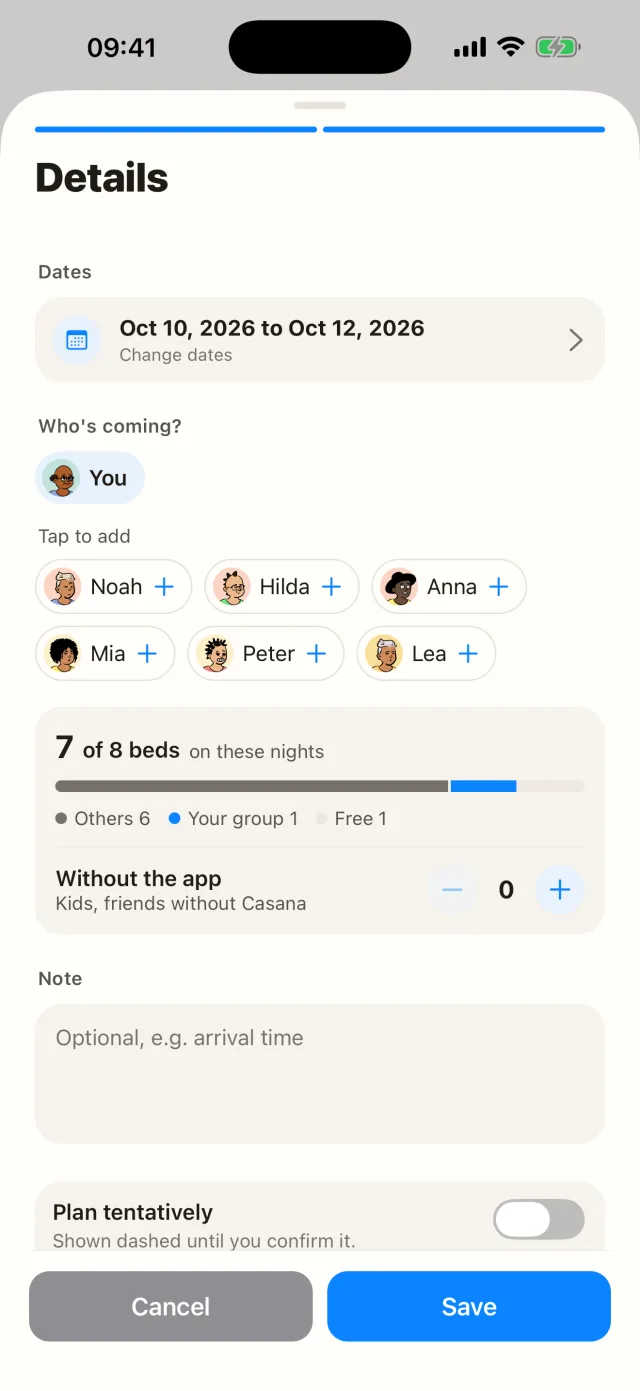
You also see the beds later: in a stay under Participants (busiest night) and in the place calendar for the selected day. The bed count of the place is shown under its name.
Setting the bed count (owner and co-owner)
After you create a place, Casana asks in the Sleeping places step how many beds it has. You can skip it. Later you change the number under Stays › Edit in the Occupancy section. Without a bed count, no occupancy is shown.
Allow joining
When adding a stay, or later when editing it, you can turn on Allow joining. Members of the place can then add themselves to your stay without confirmation. They see the note and checklists and get updates about the stay. You get a notification for every new joiner. The switch is off by default.
Joining from the stay
When you open a stay that allows joining and you’re not on it yet, you’ll find Join at the bottom. You can leave later with Leave Stay.
All notifications are listed in Turning on notifications.
Still need help?
Get in contact and we will be glad to help.